

VoIP
ALLOcloud
Connect ALLOcloud to Leexi to automatically import your recorded calls.
Who is this for?
- Administrators who manage company integrations.
Permissions and licenses
- License required: depending on your plan, check availability in Settings > Integrations.
- Administrator rights on your Leexi and ALLOcloud accounts.
How to use it
Estimated time: 5 minutes.
Enable call recording in ALLOcloud
- Go to Config → Advanced → Account Details.
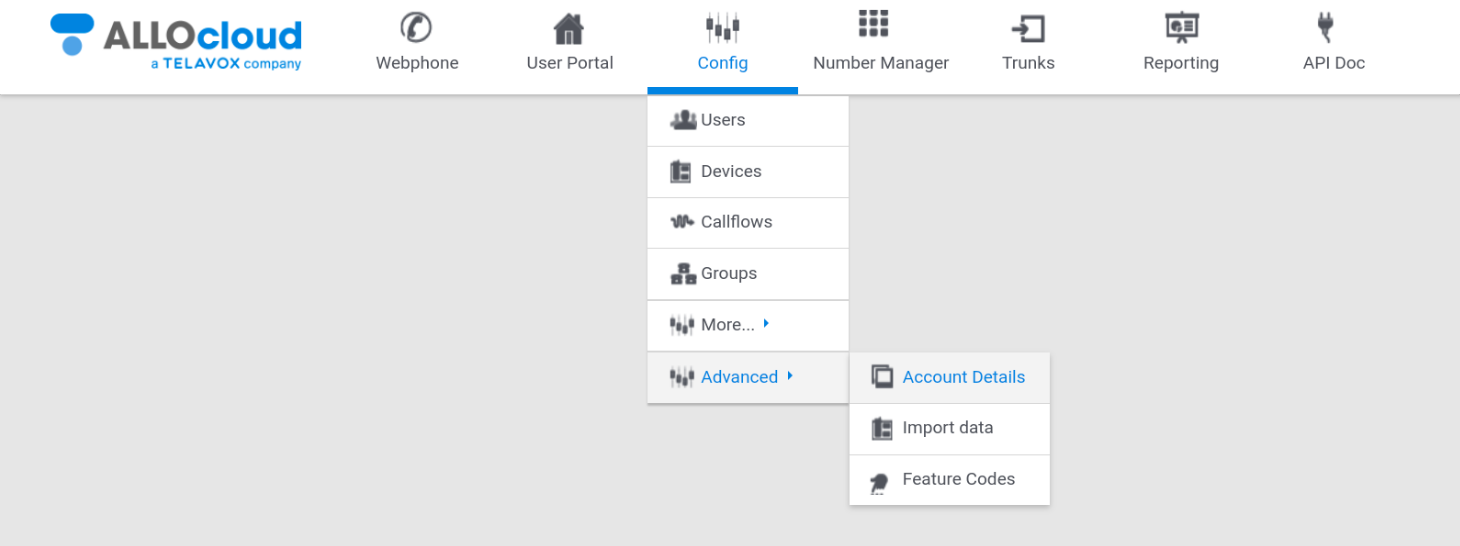
- Go to the Advanced tab and check the Outgoing call recording box. Check the ALLOcloud documentation to enable recording of incoming calls with callflows.
Create an API key in ALLOcloud
- Go to the Credentials tab, enter the name
Leexiand click create.
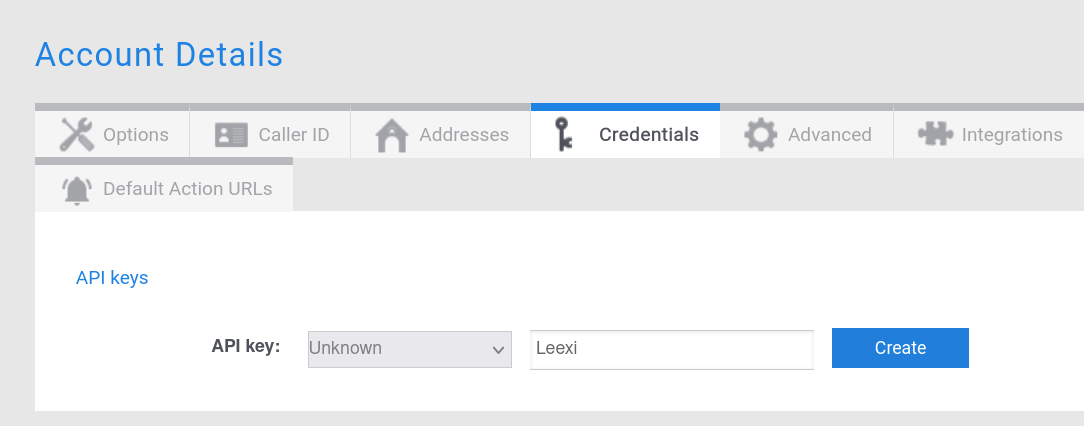
- A window appears with the API key: copy it (without the "API Key: " prefix!).
Enable the integration in Leexi
- Go to Settings > Integrations.
- Click Add on the ALLOcloud integration.
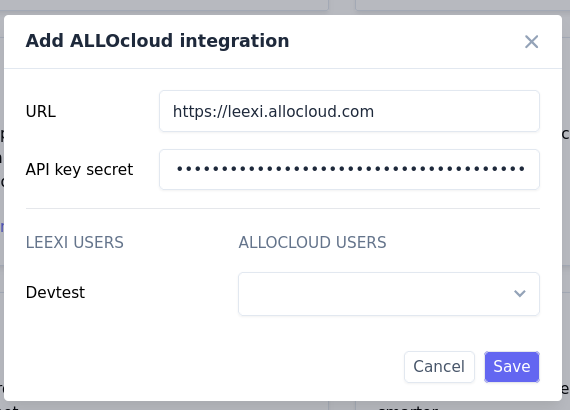
- Paste the API key you just copied.
- Copy and paste the URL you obtained when connecting to ALLOcloud, containing your company name, for example
https://leexi.allocloud.com(do not include anything after the ".com"). - Click Save.
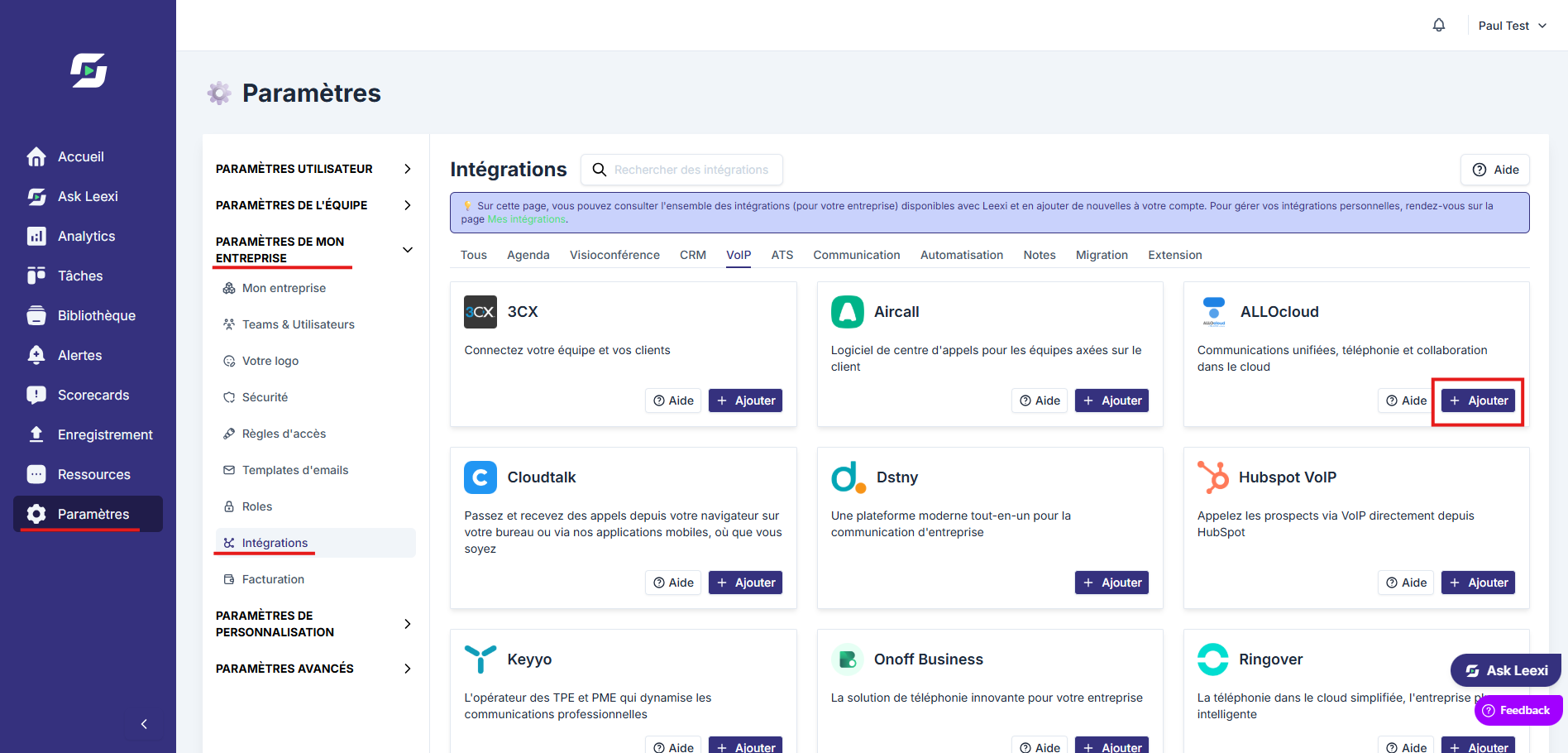
Your next ALLOcloud calls will appear in Leexi!
Things to watch out for
- Only outgoing call recording is enabled via the Outgoing call recording box: for incoming calls, configure callflows following the ALLOcloud documentation.
- Copy the API key without the "API Key: " prefix.